
 How to Create an Interactive AR House Tour in ARLOOPA Studio
How to Create an Interactive AR House Tour in ARLOOPA Studio
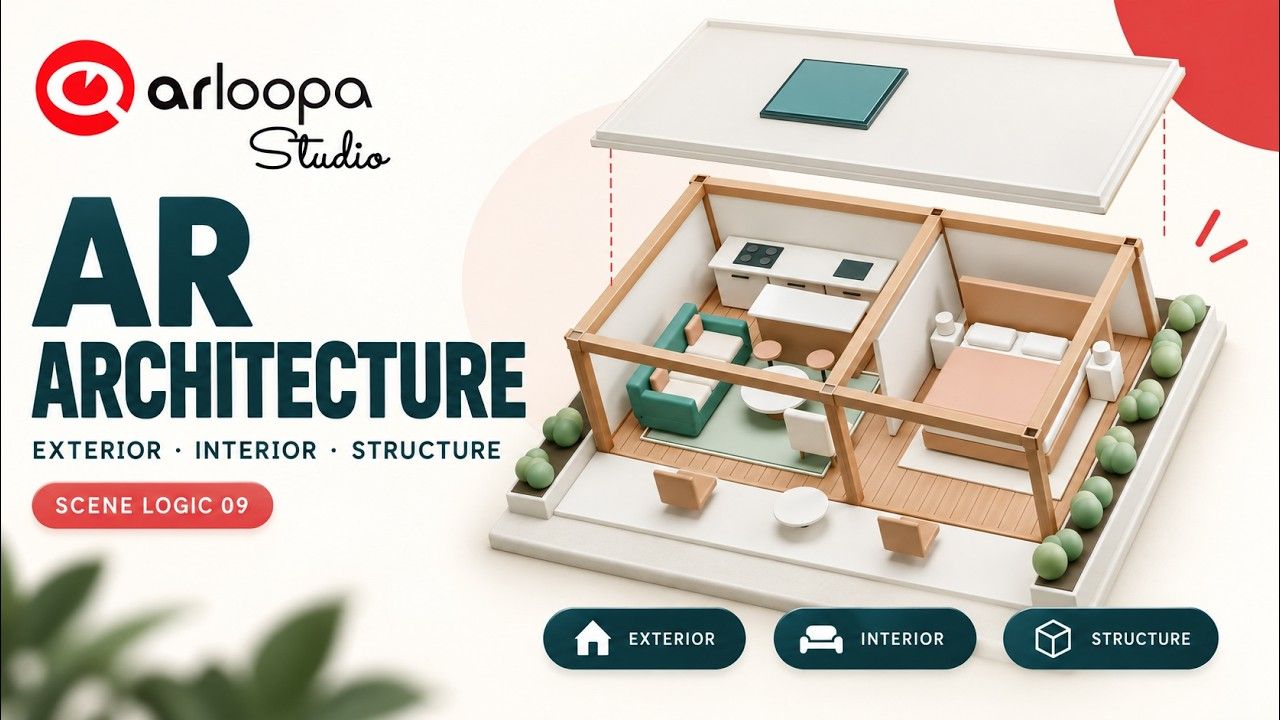
What if you could explore a house in augmented reality and switch between its exterior, furnished interior, and underlying structure with a single tap?
With ARLOOPA Studio, you can transform a 3D architectural model into an interactive presentation that lets viewers explore different aspects of a building. Using Scene Logic, you can connect simple buttons to preconfigured animations and reveal different views of the same house—all without writing code.
In this tutorial, you'll learn how to create an interactive AR house tour featuring a 3D Garden House. Users will be able to switch between three architectural views, each with its own information card, to explore the building from different perspectives.
Watch the Tutorial
Follow the complete video tutorial to learn how to build the interactive architectural presentation step by step.
What Is an Interactive AR House Tour?
An interactive AR house tour uses augmented reality to present a digital architectural model in a real-world environment.
Instead of viewing a building through static images or traditional architectural renders, viewers can interact with a 3D model and explore different aspects of the design.
For example, they could inspect the exterior, discover the furnished interior, and examine the timber structure—all within the same AR experience.
Interactive architectural presentations can be useful for:
- Architecture and design: Present building concepts and explore different design features.
- Real estate: Help prospective buyers understand a property's layout and appearance.
- Construction: Communicate structural concepts and building details.
- Interior design: Showcase furnished spaces and interior arrangements.
- Education: Demonstrate architectural styles, construction methods, and building systems.
- Exhibitions and sales presentations: Create interactive experiences for architectural projects.
What You'll Build
In this tutorial, you'll create an interactive presentation featuring a 3D Garden House.
The experience includes three buttons that let users switch between different views of the building.
- Exterior: Explore the house's external appearance.
- Interior: Reveal the furnished interior.
- Structure: Examine the building's timber structure.
Each view has a matching information card that provides context for the selected presentation.
By combining these elements, you'll create an experience that allows viewers to explore the building at their own pace without leaving the AR scene.
How to Create an Interactive AR House Tour in ARLOOPA Studio
Step 1: Create a Markerless AR Experience
Open ARLOOPA Studio and start a new project.
Choose the following settings:
- Tracking: Surface Tracking
- Platform: ARLOOPA App
- Scene type: Empty Scene
Surface Tracking allows viewers to place the architectural model on a detected surface, making it possible to explore the building in their physical environment.
Step 2: Upload and Position the Garden House
Import the supplied Garden House GLB model into your scene.
Use the visual handles to adjust its position and scale. Because architectural models can contain many details, frame the house carefully so viewers can understand the overall design while still seeing the important features.
The supplied model already includes the animations and information cards required for the three views. You won't need to create the architectural model or animate the building yourself.
Step 3: Create the Exterior Button
Add a native button labeled Exterior.
Position it using the scene's visual handles and make sure it is easy to access without obscuring the building.
This button will allow viewers to activate the exterior presentation and return to that view whenever they want.
Step 4: Add the Interior and Structure Buttons
Create two additional buttons:
- Interior
- Structure
Arrange all three controls into a clear, consistent interface.
Using descriptive labels makes it easy for viewers to understand what each option reveals. Consider leaving enough space between the buttons to make them comfortable to select on a mobile device.
Step 5: Connect the Button Click Events
Open Scene Logic and connect the Exterior button's On Model Click event to the animation actions.
The basic interaction pattern is:
On Model Click → Stop Animation → Play Animation
When a viewer selects the button, the logic stops the current animation and plays the animation associated with the selected view.
This makes it possible to switch between architectural presentations using simple visual controls.
Step 6: Select the Named Exterior Animation
Choose the named animation corresponding to the exterior view.
Because the supplied model already contains the required animations, you can select the appropriate clip rather than entering X, Y, or Z coordinates or manually configuring transformation values.
This keeps the Scene Logic graph focused on controlling the presentation rather than creating the animations.
Step 7: Connect the Interior and Structure Views
Repeat the same interaction pattern for the Interior and Structure buttons.
Each button should reference the appropriate model connection and play its corresponding animation.
Using separate object references helps keep the interactions organized and ensures that each button controls the intended architectural view.
When a viewer switches from one view to another, the current animation is stopped before the next one begins.
Step 8: Test Switching Between Views
Preview the experience and try switching between all three views.
Pay particular attention to transitions that involve the roof animation or other moving architectural elements.
Check that:
- Exterior displays the intended building view.
- Interior reveals the furnished spaces.
- Structure shows the timber framework.
- The correct information card accompanies each view.
- Selecting another button stops the previous animation as intended.
- Switching views during an animation doesn't leave the presentation in an unexpected state.
Testing transitions is important because viewers may switch between views before the current animation has finished.
Step 9: Refine the Experience
Once the interactions work correctly, review the overall presentation.
Make sure the house is clearly framed, the controls are readable, and the information cards are easy to understand.
A good architectural AR experience should help viewers focus on the building rather than making them work to understand the interface.
Test the experience in the ARLOOPA App as well, particularly if you plan to use it for a real estate presentation, exhibition, or client meeting.
Why Use Scene Logic for Architectural Presentations?
Scene Logic lets you connect user interactions to animations and other behaviors through a visual workflow.
In this project, the same simple interaction pattern powers three distinct architectural views. The result is an interactive presentation without the need to create a complex navigation system or write traditional code.
The finished graph contains 18 nodes and 15 connections, with no Number or transform nodes required.
This approach can be adapted to other architectural projects, including residential developments, commercial buildings, interior concepts, and educational demonstrations of construction techniques.
Explore Architecture in a New Way
Interactive AR presentations give architects, designers, and real estate professionals another way to communicate their ideas.
By allowing viewers to switch between the exterior, interior, and structure of a building, you can present more information within one experience and help people understand a design from multiple perspectives.
Ready to create your own interactive architectural presentation?
Open ARLOOPA Studio, follow the tutorial, and experiment with turning your 3D building models into interactive AR tours.
Exercise Asset Credits
The exercise pack contains the original Garden House GLB model and setup instructions. The assets are supplied under the CC0 1.0 Universal license.
Exercise asset download: Add the hosted exercise-pack link here before publishing.


See more articles



Solutions