
 How to Build an AR Multimedia Control Panel in ARLOOPA Studio
How to Build an AR Multimedia Control Panel in ARLOOPA Studio
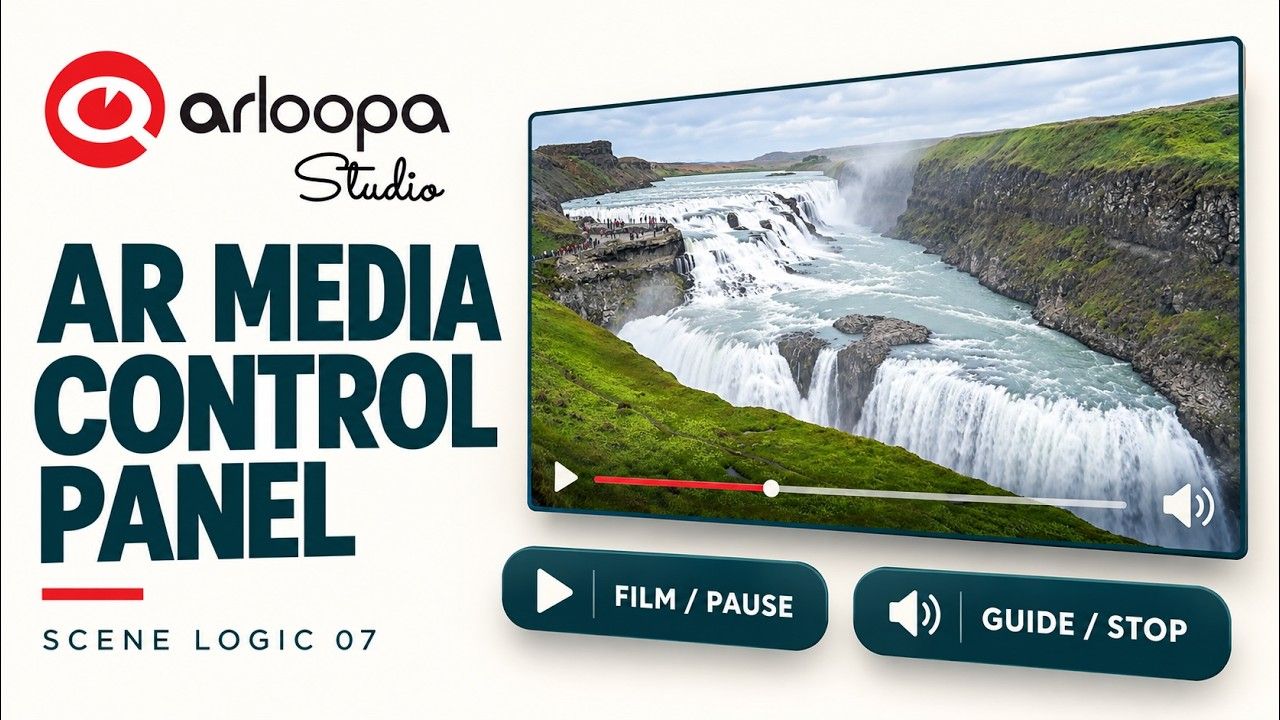
What if you could turn a destination guide into an interactive augmented reality experience where visitors can watch a video, listen to a spoken guide, and control playback with just two buttons?
With ARLOOPA Studio, you can combine video, audio, and interactive controls to create engaging multimedia experiences. Using Scene Logic, you can build a simple destination kiosk that lets visitors pause and resume a film, stop and replay an audio guide, and switch between media without playing both simultaneously—all without writing code.
In this tutorial, you'll learn how to create an interactive AR multimedia control panel featuring a video of Gullfoss waterfall in Iceland and a spoken destination guide.
Watch the Tutorial
Follow the complete video tutorial to learn how to set up the scene, upload your media, create the controls, and connect everything using Scene Logic.
What Is an AR Multimedia Control Panel?
An AR multimedia control panel combines digital media with interactive controls in an augmented reality environment.
Instead of presenting visitors with a video that plays automatically or a separate audio player, you can create a unified experience where users decide what to watch or hear.
For example, a visitor exploring a destination kiosk could watch a waterfall video, listen to a narrated guide, pause the film, or replay the audio whenever needed.
This type of experience can be useful for:
- Tourism: Present destination videos and spoken visitor guides.
- Museums and exhibitions: Combine documentary footage with narration about an exhibit.
- Education: Pair visual demonstrations with spoken explanations.
- Trade shows: Create interactive multimedia presentations for products and places.
- Visitor centers: Offer self-guided information through simple digital controls.
What You'll Build
In this tutorial, you'll create a destination kiosk featuring footage of Gullfoss waterfall in Iceland.
The experience includes a video, a spoken guide, and two interactive buttons.
- Video control: Play, pause, and resume the waterfall film.
- Audio guide control: Play or stop the spoken narration.
The interaction also ensures that only one medium plays at a time. Starting the film stops the audio guide, while starting the guide stops the film.
This keeps the experience organized and helps visitors focus on the content they choose.
How to Build an AR Multimedia Control Panel in ARLOOPA Studio
Step 1: Create a Markerless AR Experience
Open ARLOOPA Studio and start a new project.
Choose the following settings:
- Tracking: Surface Tracking
- Platform: ARLOOPA App
- Scene type: Empty Scene
Surface Tracking allows visitors to place the multimedia kiosk on a detected surface, making it suitable for interactive presentations in visitor centers, exhibitions, and other physical spaces.
Step 2: Upload and Position the Video
Import the supplied waterfall video into your scene.
Adjust its position and scale using the visual handles so the footage is clearly visible and framed appropriately.
Add a title to identify the destination or introduce the content. For this project, the video features Gullfoss waterfall in Iceland.
The supplied footage is silent, so the spoken guide can be controlled independently without competing with the video's original audio.
Step 3: Create Two Native Buttons
Add two native buttons to the scene.
Use clear labels that distinguish the video control from the audio guide control. Position the buttons so visitors can access them without obscuring the video.
Keeping the interface simple makes the kiosk easier to understand, especially for people encountering the experience for the first time.
Step 4: Upload the Spoken Guide
Import the supplied audio guide into the project.
Position the audio asset as required by the scene setup, then hide its visualization so it doesn't appear as an unwanted visual element in the experience.
The audio guide is provided as an exercise asset. Generating narration is not part of this tutorial.
Step 5: Initialize Media Playback
Before connecting the buttons, configure the initial playback state so the video and audio behave as intended when the experience starts.
This gives you a predictable starting point and helps prevent unwanted playback when visitors first enter the scene.
Step 6: Check Whether the Video Is Playing
Use the Is Video Playing node in Scene Logic to determine the current playback state.
This allows the video button to behave as a toggle rather than always triggering the same action.
When the video is playing, selecting the button can pause it. When it is paused, selecting the button can resume playback.
In the current Studio preview, Stop Video pauses the video at its current frame rather than rewinding it. This behavior is important when configuring and testing the control.
Step 7: Make the Video Button Interactive
Connect the video button's click event to the relevant playback logic.
Use the video playback state to determine whether the film should pause or resume. Before starting the video, stop the audio guide so that only one medium plays at a time.
This creates a more consistent experience when visitors switch between watching the film and listening to the narration.
Step 8: Create the Audio Guide Toggle
Now configure the second button for the spoken guide.
Use Is Audio Playing to check whether the narration is currently active and connect the appropriate actions to the button.
When the guide is playing, the button can stop it. When the guide is not playing, the button can start the narration.
Before starting the audio, stop the video to prevent simultaneous playback.
Unlike Stop Video, Stop Audio resets the spoken guide, allowing it to start again from the beginning.
Step 9: Test Switching Between Video and Audio
Preview the complete experience in ARLOOPA Studio.
Test the following interactions:
- Start the waterfall video.
- Pause and resume the film.
- Start the spoken guide.
- Stop and replay the narration.
- Switch from the video to the audio guide.
- Switch from the audio guide back to the video.
- Confirm that both media sources never play simultaneously.
Pay attention to the different stop behaviors: the video pauses at its current frame, while the audio guide resets.
Testing these scenarios ensures that visitors can move between the two media options without confusion.
Why Use Scene Logic for Multimedia Experiences?
Scene Logic lets you connect button clicks, playback states, and media actions through a visual workflow.
In this project, the Is Video Playing and Is Audio Playing nodes help determine what should happen when visitors interact with the controls.
The finished graph contains 25 nodes and 22 connections, with no Number or transform nodes required.
Each function uses its own media reference because each socket accepts one wire. This structure keeps the playback logic organized and makes it easier to manage the two media sources independently.
The same approach can be adapted to other multimedia experiences that combine video, narration, and user-controlled playback.
Turn Your Destination Guide into an Interactive AR Experience
An interactive multimedia kiosk can help visitors explore a destination through both visuals and narration.
By combining video, audio, and simple controls, you can give people more freedom to choose how they experience the content.
With ARLOOPA Studio, you can build this type of experience using prepared media assets and Scene Logic—without writing code.
Ready to create your own multimedia AR experience?
Open ARLOOPA Studio, follow the tutorial, and experiment with combining video, narration, and interactive controls.
Footage Credits
“Gullfoss waterfall in Iceland.webm” by Alexander Grebenkov, published July 9, 2019, under the Creative Commons Attribution 3.0 license.
The footage was transcoded to H.264 MP4, with the original audio removed. Its framing and duration were retained. The thumbnail uses an AI-created adaptation inspired by a frame from the footage.


See more articles



Solutions