
 Fix Scene Logic: Animation Timing, Replay & Reset in ARLOOPA Studio
Fix Scene Logic: Animation Timing, Replay & Reset in ARLOOPA Studio
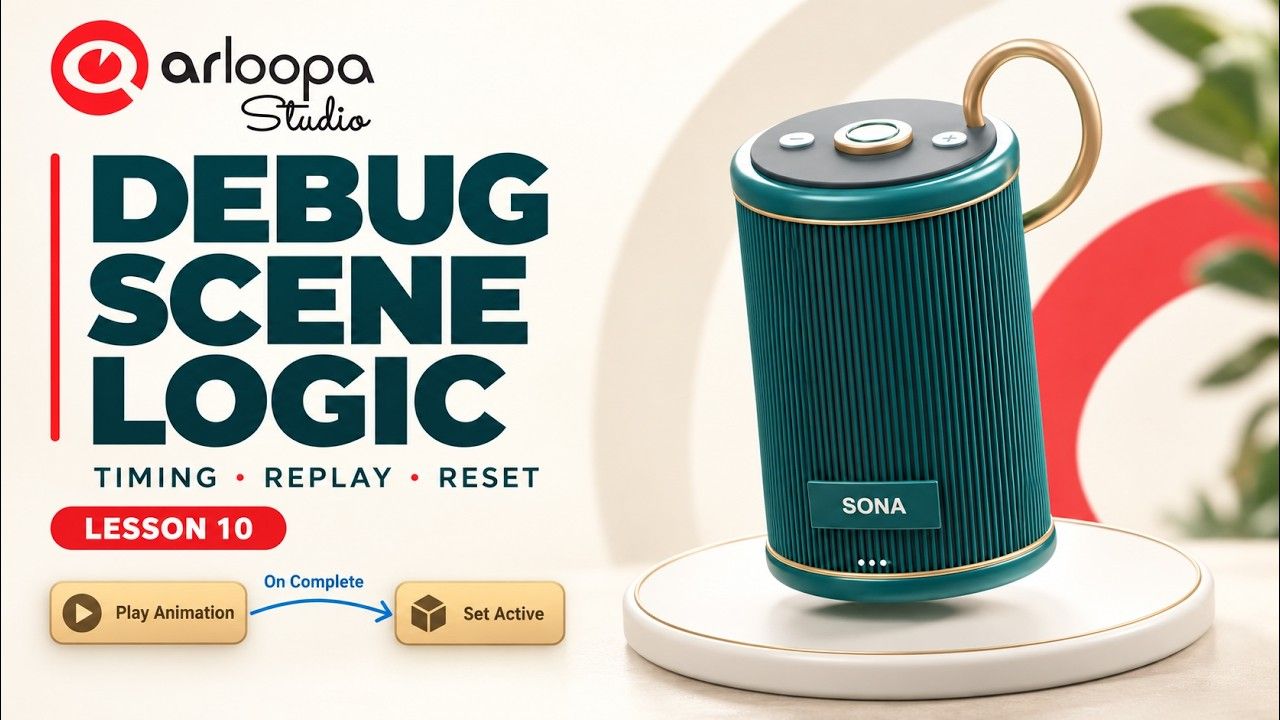
Animations can make an AR product experience feel polished and interactive—but what happens when a headline appears too early, replay leaves old text on screen, or Reset is pressed before an animation finishes?
In Lesson 10 of the ARLOOPA Studio Scene Logic series, we build a small augmented reality product showroom featuring the SONA speaker. You’ll learn how to identify and fix animation timing issues, manage replay behavior, and create a reliable reset interaction—all directly in Scene Logic, without programming.
Watch the tutorial to follow along step by step.
What You’ll Build
The result is a markerless AR showroom for the ARLOOPA App, featuring a SONA speaker with its existing Launch animation, a Demo button to trigger the experience, a headline that appears at the correct moment, and a Reset button to interrupt the animation and clear the scene.
The speaker model already includes its Launch animation, so the focus is on interaction design and debugging—not 3D modeling.
What You’ll Learn
- Create a Surface Tracking experience for the ARLOOPA App.
- Upload and frame a 3D model in ARLOOPA Studio.
- Add and position native buttons and text.
- Understand why connecting the headline to Play Animation → Out makes it appear too early.
- Use On Complete to display the headline only after the animation finishes.
- Hide the previous headline before replay using Set Active → False.
- Stop an animation during playback and hide the headline with a separate reset action.
- Test the interaction beyond the original animation’s expected ending to check for timing issues.
Step-by-Step: Fix Animation Timing in Scene Logic
1. Create the AR showroom
Start on the Create page in ARLOOPA Studio and set up a new experience for the ARLOOPA App using Surface Tracking. Upload the supplied SONA speaker GLB and frame the model in the scene.
2. Add the Demo and Reset buttons
Create two native buttons: Demo and Reset. Position them so users can easily access both controls while viewing the speaker.
3. Prepare the headline
Add a text element for the headline and position it within the showroom composition. This is the message that should appear once the speaker’s Launch animation has completed.
4. Build the first interaction—and spot the problem
Connect the Demo button to the speaker’s Launch animation. In the first draft, the headline is triggered from the animation’s Out connection.
This creates a timing problem: the headline appears as soon as the animation node passes control onward, rather than waiting for the animation to finish.
5. Connect the headline to On Complete
Fix the timing by reconnecting the headline action to On Complete. Now the headline waits until the Launch animation has finished before appearing.
This distinction is essential when building polished AR interactions: the next action should depend on the event you actually want to detect.
6. Clear the previous headline before replay
When users press Demo again, the previous headline may still be visible. Add a Set Active → False action to hide it before starting the next animation.
This keeps the sequence clean and ensures the headline appears at the intended moment on each replay.
7. Build a reliable Reset interaction
Connect the Reset button to Stop Animation so the current animation can be interrupted. Add a separate action to hide the headline.
Keeping these actions separate makes the reset behavior easier to understand and debug.
8. Test completion, replay, and interruption
Test the full experience:
- Press Demo and confirm the headline appears only after the animation completes.
- Press Demo again and check that the previous headline is hidden before replay.
- Press Reset while the animation is running.
- Wait beyond the animation’s original ending time to make sure the cancelled animation does not trigger an unwanted late headline.
- Run the sequence again to confirm the experience remains consistent.
Understanding the Final Scene Logic Graph
The completed graph contains 19 nodes and 17 connections, with no Number or transform nodes. Every interaction is built manually in Scene Logic.
The key lesson is that reliable animation behavior depends on connecting the right events and actions—not simply linking nodes until the scene appears to work.
Download the Exercise Assets
The exercise pack includes:
- The original SONA speaker GLB model.
- Complete setup and debugging instructions.
- A CC0 license.
Exercise pack: [Add the hosted exercise-pack link here before publishing.]
Explore ARLOOPA Studio
Ready to create your own interactive AR experience? Open ARLOOPA Studio and experiment with animation events, replay behavior, and reset logic.


See more articles



Solutions